This tutorial describes how to configure the Augmentation Configurator to include lower-quality CDQ.POOL Business Partner records, independently for Lookup & Augmentation and for Update Monitoring.
By default, only CDQ.POOL records with a Validation Level of OK or INFO are used. This tutorial shows how to extend that threshold to also include lower-quality records (WARNING, ERROR) when your use case can tolerate them, without affecting matching, fetch, or curation logic.
Validation Level reflects the data quality of a CDQ.POOL record. From highest to lowest quality, the hierarchy is:
OK > INFO > WARNING > ERROR
Learning Goals
In this tutorial, you will learn how to:
- Understand what the Maximum Allowed Finding Severity setting controls
- Enable CDQ.POOL for Lookup & Augmentation and/or Update Monitoring in a configuration
- Configure the maximum allowed finding severity independently for Lookup & Augmentation and for Update Monitoring
- Understand the default, backward-compatible behavior when the setting is off
- Choose whether to reevaluate existing Business Partners after saving
To go through the tutorial, you have to log in to the CDQ Cloud Apps.
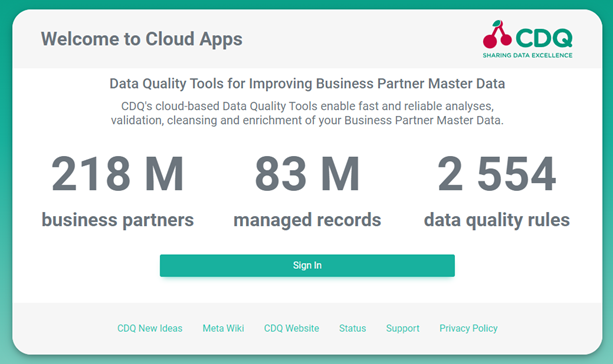 |
Click on Sign In and enter your username and password.
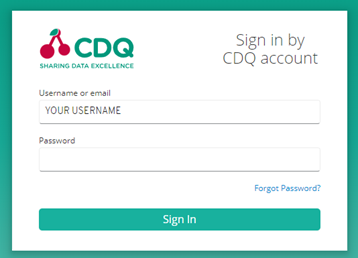 |
If you have no access to the CDQ Cloud App, ask your internal point of contact to create a CDQ dedicated account. Account details will be sent by email.
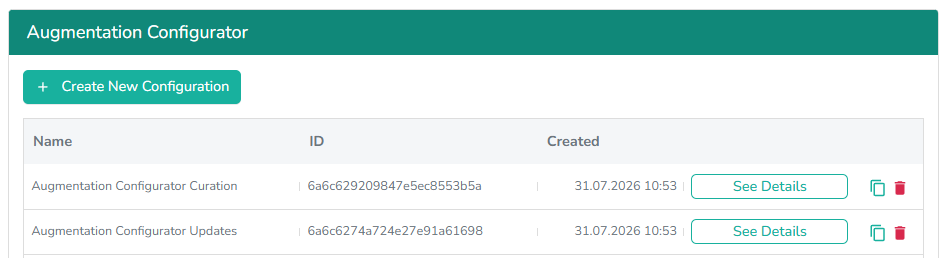
- Go to the Augmentation Configurator cloud app.
- In the list of configurations, find the one you want to edit, or create a new one.
- Click See Details next to the configuration to open it.
 |
- Make sure you are on the Data Source Settings tab.
- Under Activate Reference Data Sources, use the Data Source Name field to search for CDQ.POOL.
- In the CDQ.POOL row (CDQ Data Sharing Community Data Pool), check Lookup to include CDQ.POOL data in Lookup & Augmentation.
- Check Update Monitoring in the same row to include CDQ.POOL data in update monitoring.
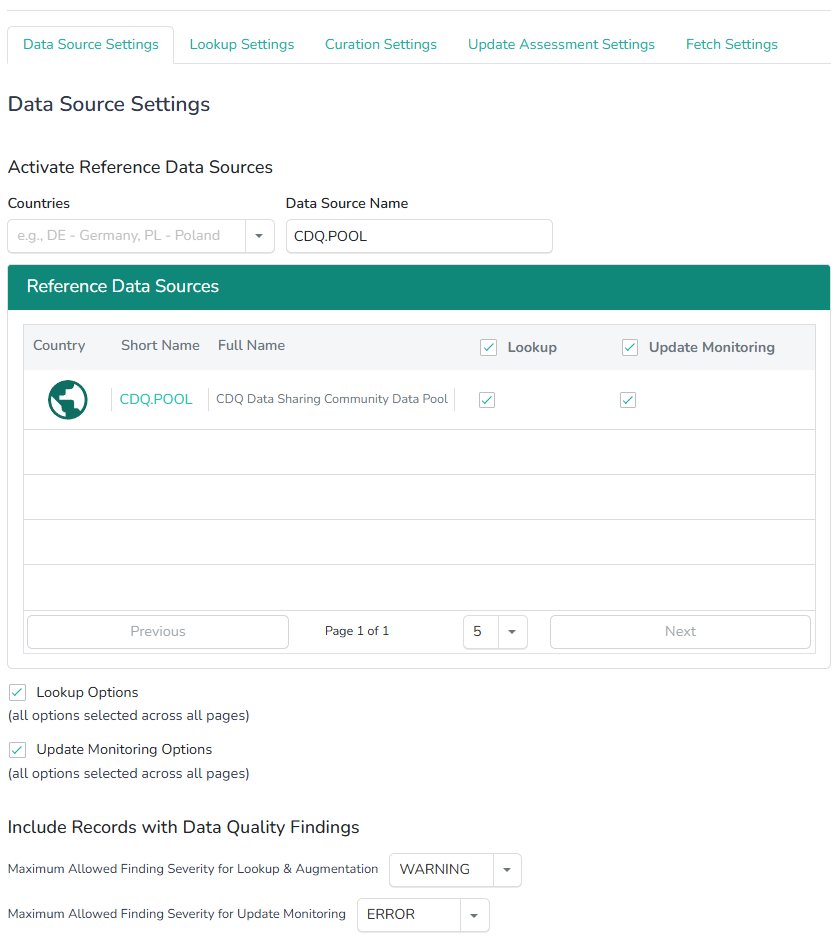 |
You can enable Lookup and Update Monitoring independently; checking one does not require checking the other.
- Scroll down to the Lookup Options section.
- Check Include Records with Data Quality Findings.
- In the Maximum Allowed Finding Severity for Lookup & Augmentation dropdown, select
OK,WARNING, orERROR:
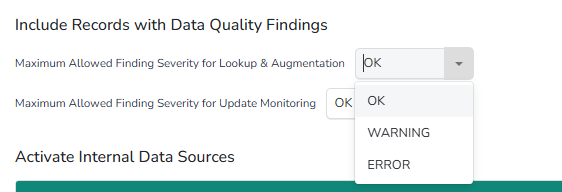 |
| Selected Severity | Included Validation Levels |
|---|---|
OK | OK, INFO |
WARNING | OK, INFO, WARNING |
ERROR | OK, INFO, WARNING, ERROR |
UNKNOWN is never available as a selectable option and is never returned, regardless of the selected severity.
- Scroll down to the Update Monitoring Options section.
- Check Include Records with Data Quality Findings.
- In the Maximum Allowed Finding Severity for Update Monitoring dropdown, select the desired severity (
OK,WARNING, orERROR) using the same inclusion logic as in Step 3.
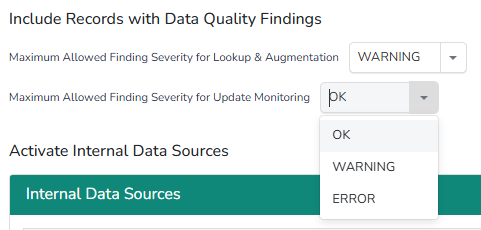 |
The severities for Lookup & Augmentation and for Update Monitoring are configured independently. Changing one does not affect the other.
- Click Save Configuration.
What happens next depends on whether you are editing an existing configuration or creating a new one:
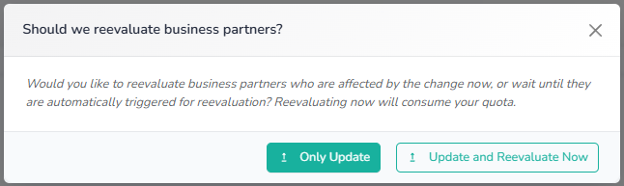
- Existing configuration: the "Should we reevaluate business partners?" dialog appears, since Business Partners may already have been processed under the previous settings.
- New configuration: there are no previously processed Business Partners to reevaluate, so the dialog does not appear, and the configuration is simply saved.
- If the dialog appears, choose:
- Only Update: apply the new settings; affected Business Partners are reevaluated automatically over time.
- Update and Reevaluate Now: immediately reevaluate affected Business Partners; this consumes your quota.
 |
- A confirmation message, "Augmentation configuration has been updated," appears once the save completes.
If you leave Include Records with Data Quality Findings unchecked for both Lookup & Augmentation and Update Monitoring, the original backward-compatible behavior applies: only OK and INFO records are used.
In this tutorial, you learned how CDQ.POOL Validation Levels are ranked, how to enable CDQ.POOL for Lookup & Augmentation and Update Monitoring in the Augmentation Configurator, how to configure the maximum allowed finding severity independently for each, and how to choose whether to reevaluate existing Business Partners after saving.
- Create Augmentation Configuration API
- How to Monitor Business Partner Updates
- How to Monitor Business Partner with Augmentation Monitor
We are constantly working on providing an outstanding user experience with our products. Please share your opinion about this tutorial!